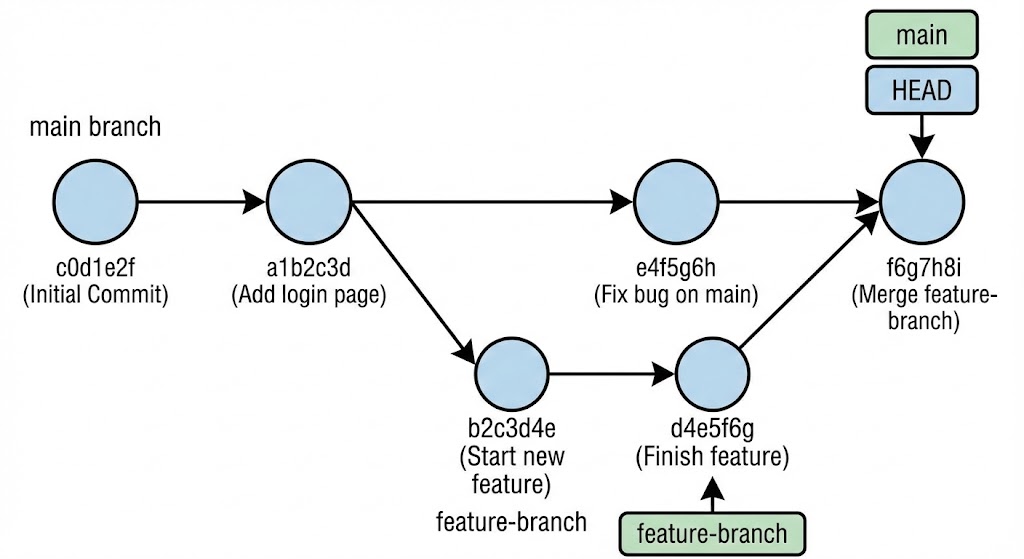
Getting to know Git

What is Git ?
A software developed to “Keep track of your code “
Git is a Distributed Version Control System (VCS) developed by Linus Torvalds to keep track of his rapidly growing codebase while developing Linux. That’s the interesting part about it, considering how important it is in modern day development, it’s surprising to learn that it started as someone’s side project that was made in a few weeks because he was frustrated with the existing tools.
Git is a system that tracks the changes you made in your code during it’s development by taking “snapshots” of your codebase at different instances. Git keeps a record of all these instances in the same directory as your code directory making sure that you have a track record of all the changes/updates of your codebase.
Why do we use Git?
Git is by far, the most widely used VCS with a staggering number of projects relying on it.
Parallel Programming - Git helps the user make copies of their codebase to be operated separately upon which can later be merged into the original codebase after testing, making sure the main codebase is working properly.
Git offers the functionality to revert back to the previous commits in case dirty code gets pushed by accident.
Collaboration - While Git is technically a VCS but it is also the “heartbeat” of the modern developer collaboration because of tools like GitHub.
Highly Optimized - The raw performance of Git is quite superior in comparison to its many alternatives, even operations like Branching, Committing changes, Merging are quite highly optimised.
Git Basic and Core Terminologies
Now that we have a basic idea of what Git and Version Control Systems are, Let us take a look at all the basic terminologies which we will encounter on a regular basis.
Repository
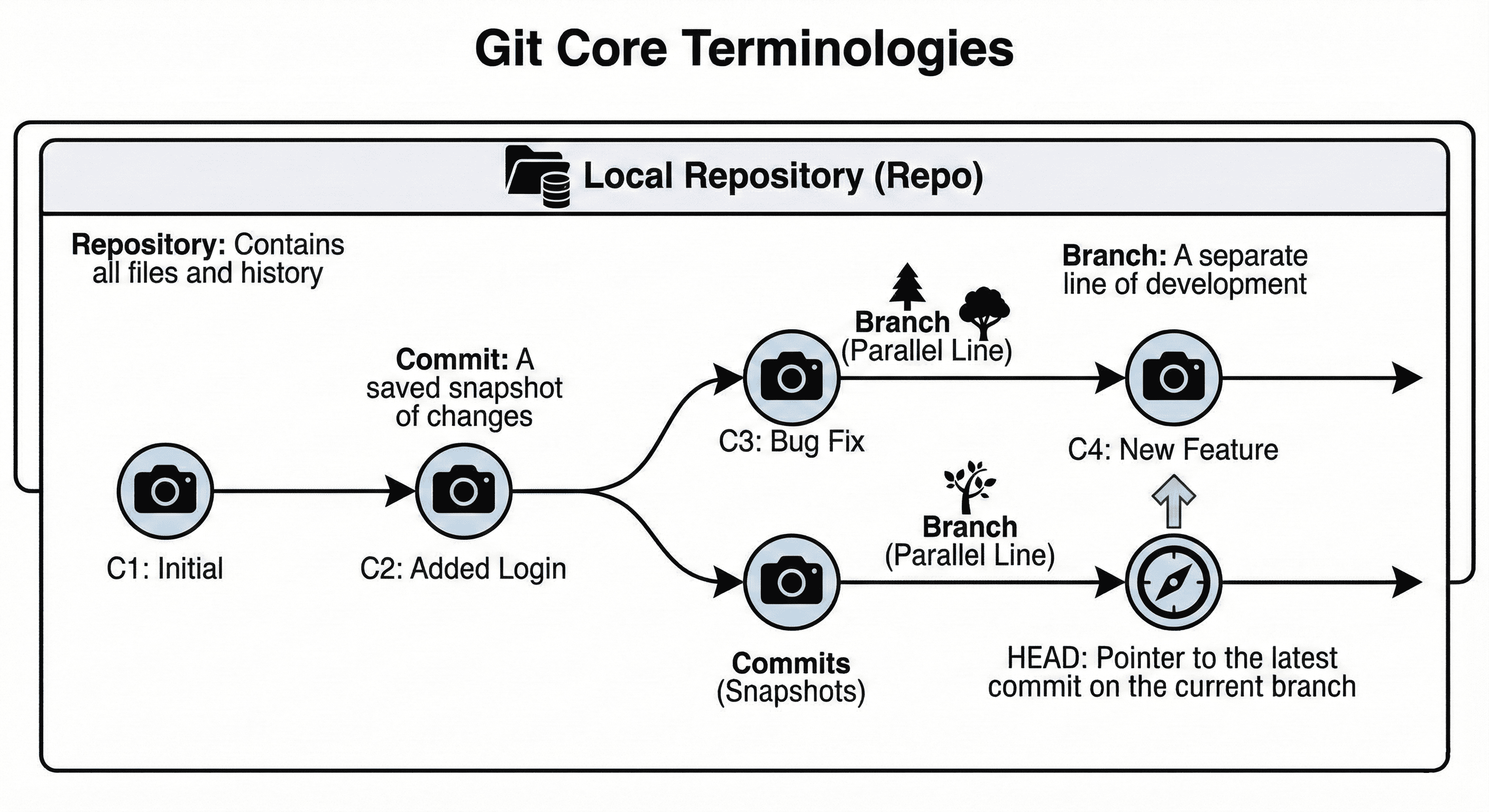
A Repository (or 'repo') is the digital folder where your entire project lives, including its full version history.
Commit
It is a command that is given to the system to save the current snapshot of the program.
Branch
It is used when user needs to create a copy of the main project to implement new features or work on a different version while keeping the original code safe. The default branch is “Master” / “Main” Branch.
Head
This refers/points to the latest commit on the branch that the user is currently working upon.
Common Git Commands
Git Init - The first Git command used in a project. It is used to initialize an Empty Git Repository in the user’s project directory.
git initGit Status - This git command is used to check the current status of your project, i.e. it shows which files have been modified, which files are out of sync (changes been made in them) and needs to be committed.
git statusGit Add - This git command is used to add files to the staging area. Here you can either selectively send files to staging area or send all the modified files to staging area.
git add file1.txt // to add specific files to staging areaOR
git add . // to add all files to staging areaGit Commit - This command is used to permanently commit files from the staging area to the main timeline.
git commit -m "Committing file1.txt"Git Log - This git commands shows you the commit history. What changes were committed, who made them, when were they made.
git log // to see a detailed logOR
git log --oneline // to see logs in one lineGit Diff - This command can be used to see what is the difference between two commits with the help of their hash id, i.e. user can see what are the changes that are made after the first hash commit to the second.
git diff 1b4742a ae6b7fe
Basic Developer Workflow Using Git
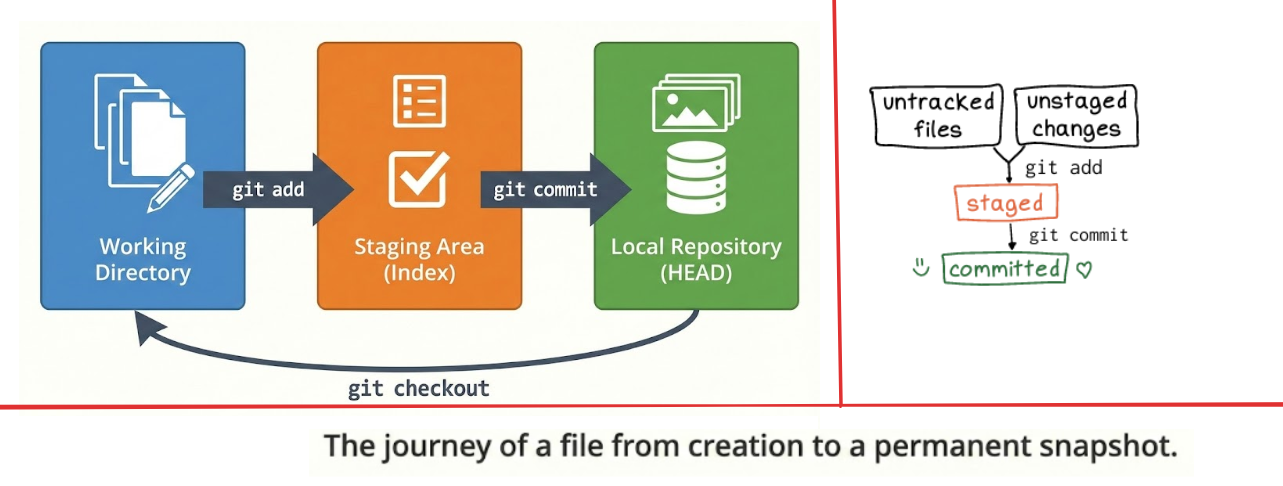
Step 1 : Create the project folder and project files
mkdir Project1
touch a.txt b.txt
Step 2 : Create an Empty Git Repository
git init
Step 3 : Check the status of the files
git status
Step 4 : Add all the changed files to staging area
git add .
Step 5 : Commit all the files of Staging area with a proper message
git commit -m "First Commit"
An Example of Developer Workflow